Wednesday, 13 June 2018

How to Unlock iPhone When iPhone Locked Up after Update

1 iPhone Locked after Update? Unlock iPhone with iTunes

If your iPhone locked up after update, you can also unlock it with iTunes. This method is directed to those ones who synchronize their iPhones with iTunes. It’s also important to remember that you will lose any previous data if you’re using this method.
Actually, unlocking your iPhone with iTunes actually means erasing the whole device so you can also erase the passcode. For restoring your device with iTunes, follow these steps:
  1. Connect your iDevice to the computer you use for sync.
  2. Open iTunes (if you’re asked for a passcode, try recovery mode or another computer where you synced).
  3. Wait for your iPhone to recognized with iTunes.
  4. When it’s recognized, select it from the iPhone icon and then go to “Summary”. click on “Restore iPhone”.
  5. iphone-icon
  6. After clicking on it, just keep continue to restore your iPhone. When it finishs, your iPhone lock will be removed. Gihosoft iPhone Data Recovery Free:https://www.gihosoft.com/iphone-data-recovery-free.html

  7. restore-iphone
  8. 2 iPhone Locked after Update? Unlock iPhone Using Recovery Mode

  9. In case you never synced your iPhone locked after update to any computer, you can still restore it with the recovery mode method. This method will also erase all the data on your iPhone.
    1. Connect your iPhone to your computer. Launch iTunes.
    2. Turn off your iPhone first, then you can put your iPhone into Recovery Mode.
    3. For iPhone 8, iPhone 8 Plus, iPhone X: press and quickly release the volume up button. Repeat with the volume down button. Finally, press and hold the Sleep/Wake button and you’ll see the the icon "Connect to iTunes"
    4. For iPhone 7 or 7 Plus: press and hold the Sleep/Wake button and the volume down button at the same time and keep pressing until you see the icon "Connect to iTunes".
    5. For iPhone 6s or earlier: press and hold the Home button and the Sleep/Wake button at the same time and keep holding until you see the icon "Connect to iTunes".
    6. After connect your iPhone to the iTunes. It will detect that your iPhone is in the recovery mode.
    7. A message will show up and tell you that your iPhone is detected in recovery mode and you should restore it before you can use it.
    8. Just click "OK" and it will be automatically recovered.
  10. itunes-detect-recovery-mode
  11. With these methods, you’ll be able to unlock your iPhone and iPhone locked up after update will no longer a problem.
Saturday, 9 June 2018

How to Export Playlist to iTunes from iPhone via iTunes?

How to Export Playlist to iTunes from iPhone via iTunes?

One thing you must make sure while exporting to iTunes is that the songs in your playlist must exist in your iTunes library too. You must make sure that your version of iTunes is updated.
Step 1. Open iTunes on your computer.
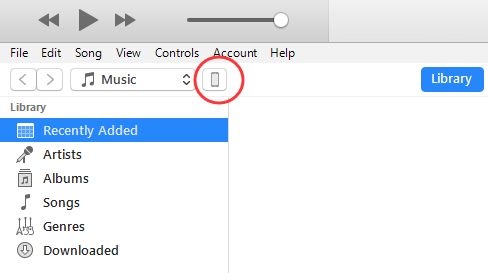
Step 2. Connect your phone to your computer via a USB cable and then connect your phone to iTunes. On the top of iTunes, click your iPhone icon.Gihosoft iPhone Data Recovery https://goo.gl/LF7B13 Gihosoft iPhone Data Recovery is a professional iPhone Data Recovery software to get back all your lost text message, photo, video, call history, note, contact and more from iPhone/iPad/iPod Touch. It offers a full solution to recover your lost data in different tough situations. Besides recovering data directly from iPhone, iPad and iPod touch, it also allows you to recover data from iCloud and iTunes backup files. https://www.gihosoft.com/iphone-data-recovery-free.html
itunes-iphone-icon
Step 3. After then, click “Music”, choose the playlist you want to export and then open “File > library”. Many options will become visible to you. Click on “Export Playlist” and save the playlist.
import-playlists
Step 4. On iTunes, go back to the iTunes menu bar. Open “File >library” and then an option of “Import Playlist” will be visible. Find the playlist that you just exported and then add it to iTunes.
import-playlists-to-itunes
You have successfully exported playlist from iPhone to your iTunes.

How to Restore iMessages to iPhone from iCloud Backup

How to Restore iMessages to iPhone from iCloud Backup

Can I Only Restore iMessages to iPhone from iCloud Backup Itself?

The answer is no. If you have backed up your messages on iTunes, you could also use it as an option. Be sure that the backup you choose should contain the iMessages you deleted before. Although this process is useful, there still is a downside to restore iMessages to iPhone from iCloud backup.  The biggest one to this method is that you cannot preview what iMessages data is in it. Additionally, restoring the whole iCloud backup will overwrite the current information on your iPhone.

How to Restore iMessages from iCloud Backup Itself to iPhone/iPad

It is not uncommon to take a quick look through your old messages, but you may have unluckily deleted the entire conversation. Fortunately, if you back up your iMessages on iCloud regularly, you can restore the whole iCloud backup including iMessages following the below steps:
  1. Tap on the setting icon. Then go to general. Follow through to Erase all content and settings. This step will remove all the details on your device, and hence you will have to set it up again.
  2. Restart the phone and follow the initial steps you used when you bought it until you reach the App & Data setting.
  3. Select Restore from iCloud Backup. Ensure that the iCloud backup contains all the messages you deleted. There you have it. Let your iPhone restore the backup, and you will access all your initial iMessages. Gihosoft iPhone Data Recovery https://goo.gl/LF7B13 Gihosoft iPhone Data Recovery is a professional iPhone Data Recovery software to get back all your lost text message, photo, video, call history, note, contact and more from iPhone/iPad/iPod Touch. It offers a full solution to recover your lost data in different tough situations. Besides recovering data directly from iPhone, iPad and iPod touch, it also allows you to recover data from iCloud and iTunes backup files. https://www.gihosoft.com/iphone-data-recovery-free.html
  4. restore iphone from icloud backup

iOS 13: All The New Features in Safari on iPhone

Safari update in iPadOS 13 is turning the iPad into a real computer . And most of those improvements make their way to the iPhone as well. ...