Friday, 15 March 2019

Top 3 iTunes backup password recovery methods


1 iTunes Backup Password Recovery for Mac - Keychain

Apple's MacOS has a password management system called Keychain, or in full, Keychain Access. If you have previously checked the "Remember this password in my keychain" box, you can recover a backup password on your MacOS using Keychain access. With Keychain, iTunes encrypted backup password recovery is easy and accurate. To get a recovery, do the following:

Step 1. On your Mac, go to Applications-Utilities and then open Keychain Access.

Step 2. Under the Keychains section, select "Login", a list of websites and applications will show up. Enter "iPhone Backup" and select it.


Step 3. A new window will open showing more details about your iTunes backup account. From this window, select the "Show password" box


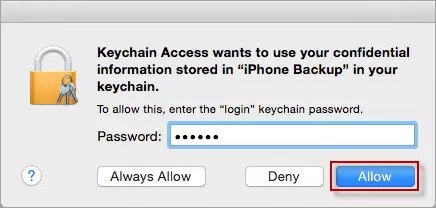
Step 4. A new window with a password prompt will be shown next. Enter your password and click "Allow". Once it is done, you can return to the precious window showing your iTunes account details including the backup password.


2 Try All Possible Passwords for iTunes Backup Password Recovery

One less effective method to try out is to enter all possible passwords you can think of at that time. This is a simple but-not-always-effective method. The possible passwords you can try out include:


Windows Administrator password


Apple ID password


Commonly used passwords such as abcdef, 0000, 9999, 123456, etc.


Your birthday
3 The Last Way - Reset all settings

Since you cannot restore an encrypted backup without its password, you will need another method to get around the recovery of your iTunes backup password. The last method is to make a new encrypted backup of your iPhone by resetting the password. You can reset the password using the built-in reset option. To do this, go through the following carefully:

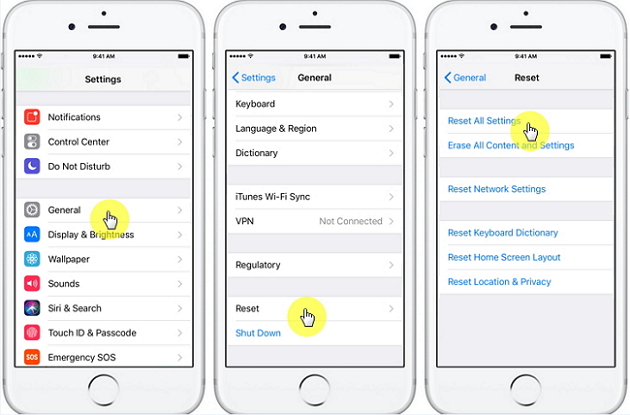
Step 1. On your iOS device, navigate to Settings and then General and Reset i.e. Settings > General > Reset.

Step 2. Tap on "Reset All Settings" and then enter your iOS passcode.

Step 3. Follow the prompts to reset your settings. Also Read:jihosoft Free iPhone Data Recovery

Sponsor ads:

Gihosoft Free iPhone Data Recovery:https://www.gihosoft.com/iphone-data-recovery-free.html

Gihosoft iPhone Data Recovery Free

Free iPhone Data Recovery Software for Windows/Mac

Recover up to 12+ types of files, including contacts, SMS, photos, WhatsApp, Viber, notes, etc.

Restore lost data from iOS devices directly or from iTunes and iCloud backup

Recover iPhone data lost due to iOS upgrade/jailbreak, accidental deletion, device lost or broken

Support all the latest iPhone, iPad and iPod Touch

Both Free and Pro version.

If you lost data after you updated to a new iPhone, you can always use Gihosoft iPhone Data Recovery to get the data back from the old iPhone or backup.You may also like: iphonerecovery.com


Note that this won't affect your passwords or other user data, but it will reset all settings such as Home screen layout, brightness and wallpaper. But it achieves the goal of removing your backup password.

Note

You still cannot use the previous encrypted backup, and it is only available for iOS 11 and later. For other earlier iOS, you would have to erase all content and settings.

Conclusion

How to Fix iPhone Volume Button Stuck


How to Fix iPhone Volume Button Stuck

Undoubtedly, it is one of the most frustrating situations when your iPhone volume button stuck or broken. The sound on your iPhone play too loud or too low and it is a common problem that many iPhone users face. There can be many reasons behind this. Maybe it is because of a hardware problem or dirt or maybe your device volume button gets damaged.

As recently, many iPhone users have reported that iPhone 6 volume button stuck and how they can fix it. That's why we come up with various ways that can fix the volume button stuck on iPhone XR/XS/X/8/7/6s/6/5s/5/5c.


Tip 1: Clean Volume Button


Tip 2: Clean Charge Port and Headphone Jack


Tip 3: Squeeze the Volume Button


Tip 4: Update iOS on your Device


Tip 5: Repair iOS to Fix Volume Button Stuck without Data Loss


Tip 6: Restore iPhone to Factory Settings (Data Loss)


Tip 7: Hardware Issue


Tip 8: Disassemble the iPhone
Tip 1: Clean Volume Button

It might be possible that your device volume buttons are dirty and have debris and that's why the volume button gets stuck. Thus, in this situation, you need to make sure that your iPhone volume button and sockets are cleaned. You can clean using a cotton bud and run it gently around the buttons and socket. You can dip a cotton bud into the water as direct water contact can damage the volume button. Last, you can use dry bud to clean any moisture.
Tip 2: Clean Charge Port and Headphone Jack

It can also possible that your iPhone headphone jack and connectors are having some dirt particles that cause you to face this problem. Thus, use a toothpick to clean your device charge port and headphone jack. Gently remove all dust particles, dirt, and debris so that problem gets solved. Once you are done with cleaning, try to turn volume buttons on or off to check if they are now working properly.
Tip 3: Squeeze the Volume Button

If the above tips fail to fix the issue, then it might be the case that your iPhone volume button is jammed. In this scenario, you can fix the issue by pressing the buttons several times. This tip works for many iPhone users and maybe it also works for you.
Tip 4: Update iOS on your Device

Make sure that you have updated your iPhone to the latest iOS version. If the problem you are facing now is due to a software issue, then it will certainly get resolved by simply updating your device to the latest software. Generally, Apple fixes the many bugs in the latest iOS version. You might don't know that iPhone 6 volume button stuck problem generally occurs due to the unstable iOS version on your device.

Below are steps on how to check and install the latest software on your iPhone:

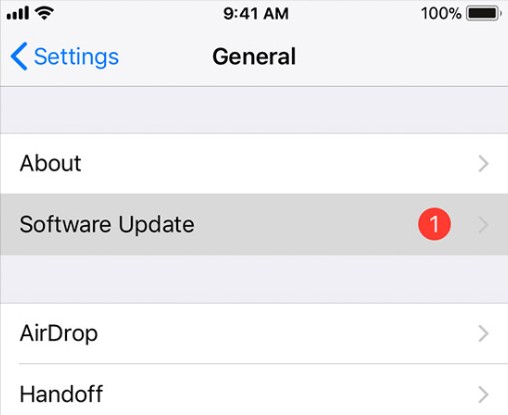
Step 1: Go to the Settings app and then, open the "General" settings.

Step 2: Here, click on "Software Update" and if an update is available for your device, then download and install it to avoid the iPhone volume stuck problem.


Tip 5: Repair iOS to Fix Volume Button Stuck without Data Loss

Also Read:jihosoft Free iPhone Data Recovery

Sponsor ads:

Gihosoft Free iPhone Data Recovery:https://www.gihosoft.com/iphone-data-recovery-free.html

Gihosoft iPhone Data Recovery Free

Free iPhone Data Recovery Software for Windows/Mac

Recover up to 12+ types of files, including contacts, SMS, photos, WhatsApp, Viber, notes, etc.

Restore lost data from iOS devices directly or from iTunes and iCloud backup

Recover iPhone data lost due to iOS upgrade/jailbreak, accidental deletion, device lost or broken

Support all the latest iPhone, iPad and iPod Touch

Both Free and Pro version.

If you lost data after you updated to a new iPhone, you can always use Gihosoft iPhone Data Recovery to get the data back from the old iPhone or backup.You may also like: iphonerecovery.com
If you use android phones, please choose Gihosoft Android Data Recovery.
With Gihosoft Android Data Recovery, no longer afraid of data loss!
Must read:Youtube video downloader for pc
Gihosoft RePicvid Free Photo Recovery Software provides a free photo recovery software for windows to help users recover the deleted or lost photo for free.
Jihosoft Android Data Recovery: the best Android Data Recovery software for Windows and Mac to recover deleted contacts, messages, photos, videos, WhatsApp and etc from Android devices.Tips:How to transfer messages from iPhone to iPhone
Jihosoft File Recovery:Recover deleted, Lost, formatted, or corrupted files from PC, flash drive and memory card easily & safely

Wednesday, 13 March 2019

7 Best Apps like Whatsapp for Android 2019


7 Best Apps like Whatsapp for Android 2019
However, using just the same app for all your Instant messages for long since should have bored you at least once. Each one of us would definitely love to look into more such beneficial apps with a variety of new features.

By the way, Whatsapp isn’t the only Instant Messaging applications out in the field. Although Whatsapp keeps introducing new features at every turn, there is a slew of other Messenger applications available even with much more features.

So are you someone who simply loves to scrutinize some Instant messaging apps similar to Whatsapp? Then you are in the right place to explore. So let us take a look at some of the best alternative apps like Whatsapp for Android devices.

Worth Reading: 7 Best Snapchat like Face Filter Apps for Android
7 Best Apps like WhatsApp for Android:


Telegram


Viber Messenger


Hike Messenger


WeChat


Skype


Line


Kik
1. Telegram

Telegram is one of the best alternative apps for Whatsapp with a total of 200 Million active users throughout the world. The app itself is a simple Instant messaging app as well as a giant cloud network where you can share media files without any limits regarding its file type or size.

One of the most advanced features of Telegram is that one can host Chat groups which can house up to 200K Members! And all messages sent and received through Telegram is stored into Telegram Cloud i.e, the app won’t consume much of your device storage space unless you have saved the file to your device.

In the case of speed and security, the app is no exception. It works seamlessly across all your synced devices. All Telegram chats are encrypted and even you can have secret chats without revealing your identity. The app also provides a vast range of sticker and gif collections looking forward to creating an engaging chat session.

One can start using Telegram simply by signing in using your Mobile Number. The app is free to use and Ad-free as well.


Main Features:


Speed & Security


No file size limit


Groups chat with 200k Members


Stickers, Gifs, Bots and more.

Download Telegram
2. Viber Messenger

Viber is an excellent Instant messaging app for free messages and calls with a total of 800 Million users all over the world.

Viber chats are End to End encrypted just like Whatsapp, so you don’t need to worry about privacy anymore. It allows you to host chat groups with a maximum limit of 250 members. You can also enjoy free voice and video calls with your dear ones.

Viber is a perfect app for all those who love stickers. The app also features secret chats without revealing your identity and it automatically deletes your messages after a limited amount of time.


Main Features:


Free Calls


Group Chats


Stickers & Gifs


Dark Mode

Download Viber
3. Hike Messenger

Hike Messenger is an India based Instant Messaging application which mainly focuses on users who love to play with impressive stickers. The app has an enormous collection of free and paid sticker in it.

Hike supports almost 40+ languages which makes it more regional compared to all other apps. As a result, Hike is having more than 10 Crores of active users in it.

There is an added hidden mode which helps protect your chats using a password if needed. You can create chat groups which can keep a total of 1000 members in it. The app also allows you to create random polls and sports a wide variety of themes as well.


Main Features:


Chat using Stickers


40+ Languages


Hidden Mode


Different Themes

Download Hike
4. WeChat

WeChat isn’t just only an Instant messaging app, it is more like a social network with a wide variety of features included in it. The app is having a total of 1 Billion active users worldwide.

One can post photos and videos, play games, read the news and even pay money using Wechat pay using this single app. The app also provides notifications about mini-programs going around the user and has some fair number of third-party services as well.

Users can create chat groups with a maximum of 500 members to share messages and files with each other. The added feature of stickers helps users to fill their chat with some amount of fun as well.


Main Features:


Free Voice & Video calls


Post photos & Videos


WeChat Pay


Stickers, Games and more

Download WeChat
5. Skype

You might be already familiar with Skype as its a well-known app for Video calling. For your information, Skype is not only a video calling app but also an app which features instant messages, voice calls, and even SMS services.

The app has a total of 10 million + downloads through the Google Play Store. Skype looks forward to creating an environment to get users connected with all their friends and families.

Users can also form chat groups to get connected with people with similar interest under a single roof. The app also allows enjoying video calls with 1 to 24 Skype users simultaneously.


Main Features:


Quality Video Calls


Free SMS Replies


Instant Chats


Voice Calls

Download Skype
6. Line

Line is a popular Instant messenger used widely over 52 different countries. Line keeps its users connected with all their family members or friends.

The app supports free voice and video calls. Users can create chat groups containing a maximum of 200 members. Line also has some social networking features which allow users to post and share updates to their friend’s timeline.

One can sync in between all his/her devices with the same Line account which lets the user access the account effectively from any of the devices.


Main Features:


Free voice & video calls


Share posts to timeline


Auto-sync with all devices


Official Accounts

Download Line
7. Kik

Kik is an instant messaging app which let you meet new random people around the world. Unlike all other apps, Kik does not require your phone number to log in successfully. Users will be assigned with a unique Kik username which remains as the identity.

It also allows its users to search and find new friends and chat groups to mingle with. Users can explore a new world of people with similar interests and Kik lets you get connected with each other very easily.

Users can share media files, games, gifs and even more on Kik messenger.


Main Features:


No Phone number required


Instant chats


Chat groups


Search people

Download Kik


So these were our picks for best Instant Messaging apps similar to Whatsapp. As you have seen, each of these apps has some unique features to offer. Be sure to check all of them out. Hope you liked the content, comment down your favorite IM apps below and don’t forget to share it with your friends as well.Also Read:How to Go Live on Tik Tok/Musical.ly in 2019

Also Read:Reviews About Gihosoft TubeGet
Also Read:How to Fix AC3 Audio Format Not Supported Error in MX Player

How to Add a Contact to the Contacts App on Your iPhone

How to Add a Contact to the Contacts App on Your iPhone


Saving phone numbers in your iPhone's Contacts app is a quick way to know who's calling you or for you to make a phone call yourself. The Contacts app also integrates in really useful ways with Maps, Siri, and other iPhone features, so it's worth taking the time to enter all of a contact's information. Here's how to create and contacts on your iPhone.
Master your iPhone in one minute a day:

Sign up to iPhone Life's Tip of the Day Newsletter and we'll send you a tip each day to save time and get the most out of your iPhone or iPad.
Creating a Phone Contact


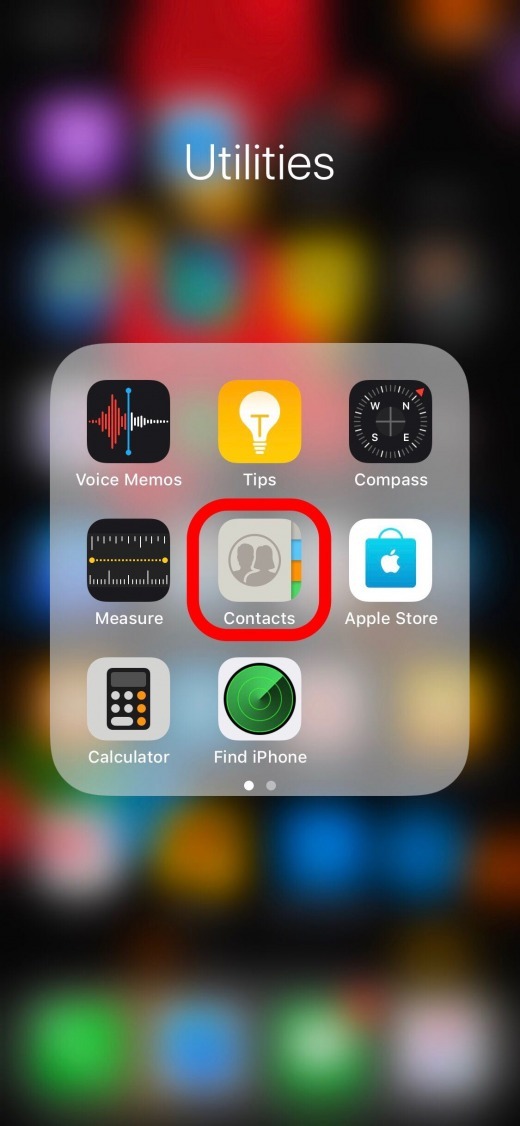
Open the Phone app and make sure you are in the Contacts tab. Or open the Contacts app itself.


Tap the + in upper right corner.


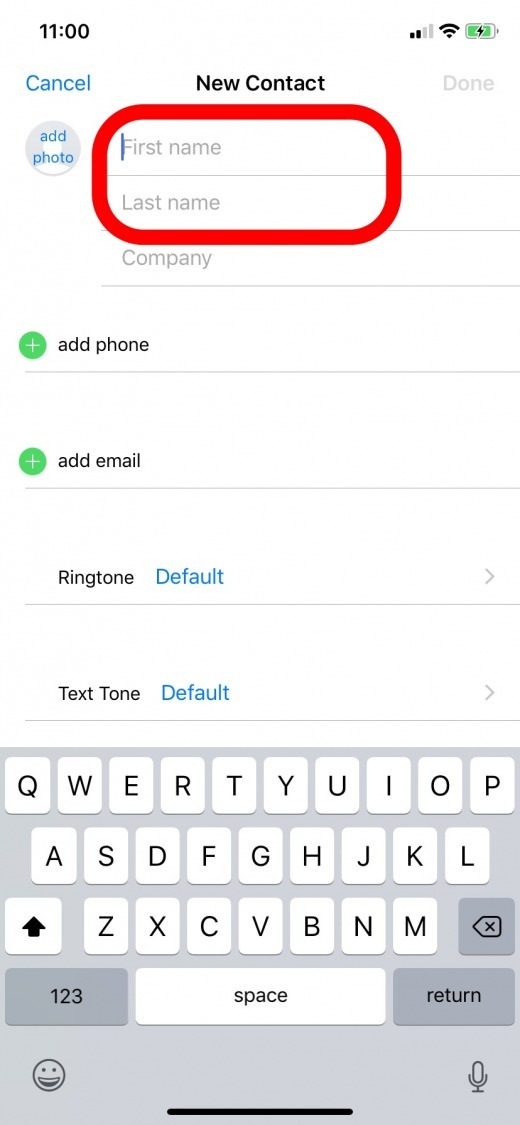
Type the person’s name.


Also Read:jihosoft Free iPhone Data Recovery


Sponsor ads:


Gihosoft Free iPhone Data Recovery:https://www.gihosoft.com/iphone-data-recovery-free.html


Gihosoft iPhone Data Recovery Free


Free iPhone Data Recovery Software for Windows/Mac


Recover up to 12+ types of files, including contacts, SMS, photos, WhatsApp, Viber, notes, etc.


Restore lost data from iOS devices directly or from iTunes and iCloud backup


Recover iPhone data lost due to iOS upgrade/jailbreak, accidental deletion, device lost or broken


Support all the latest iPhone, iPad and iPod Touch


Both Free and Pro version.


If you lost data after you updated to a new iPhone, you can always use Gihosoft iPhone Data Recovery to get the data back from the old iPhone or backup.You may also like: iphonerecovery.com


If you use android phones, please choose Gihosoft Android Data Recovery.


With Gihosoft Android Data Recovery, no longer afraid of data loss!


Must read:Youtube video downloader for pc


Gihosoft RePicvid Free Photo Recovery Software provides a free photo recovery software for windows to help users recover the deleted or lost photo for free.


Jihosoft Android Data Recovery: the best Android Data Recovery software for Windows and Mac to recover deleted contacts, messages, photos, videos, WhatsApp and etc from Android devices.Tips:How to transfer messages from iPhone to iPhone


Jihosoft File Recovery:Recover deleted, Lost, formatted, or corrupted files from PC, flash drive and memory card easily & safely


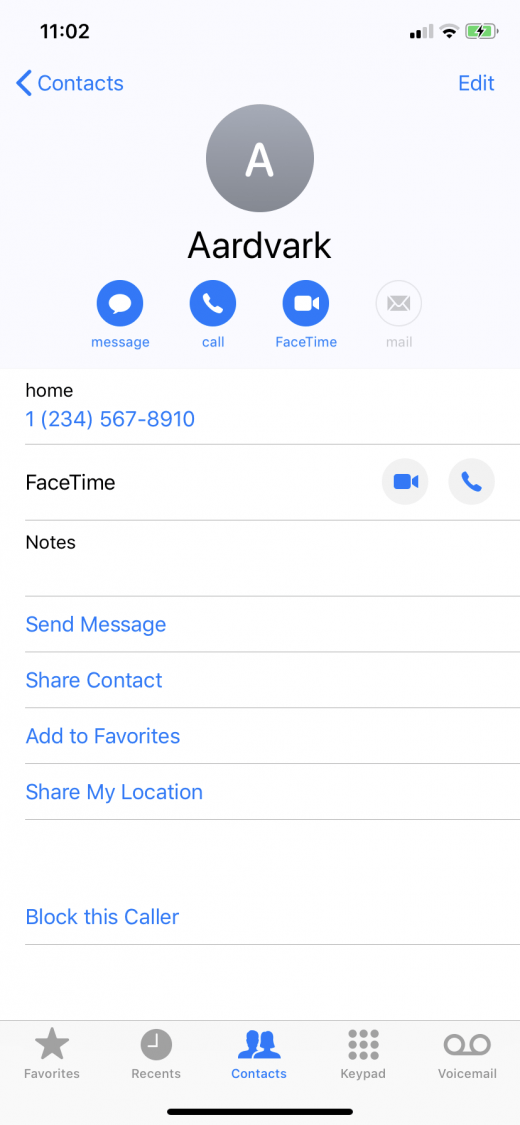
Tap the green dot next to add phone and enter the person’s phone number.


If someone called you and you want to save their information as a contact:


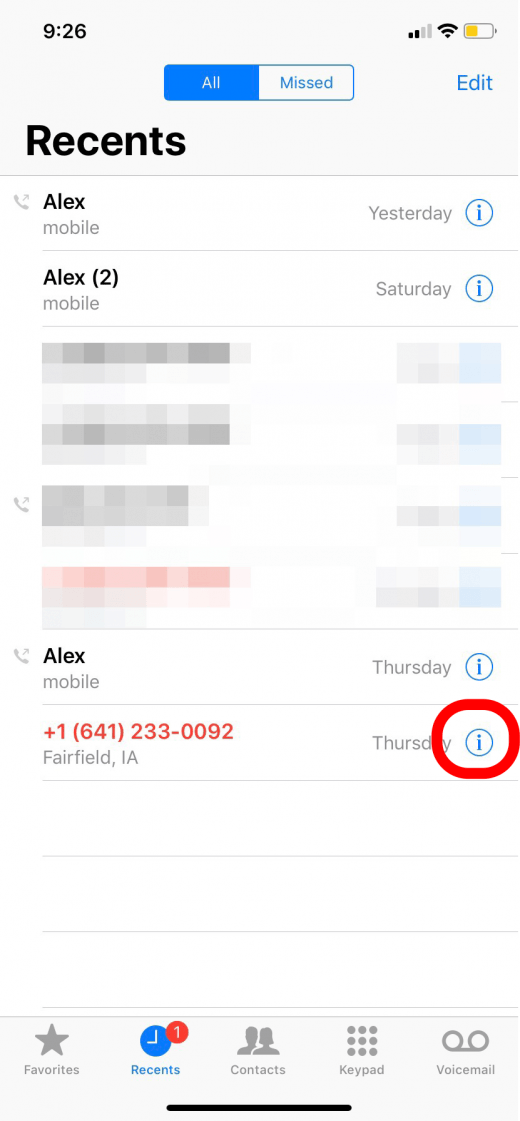
Tap Recents.


Tap the circled i icon to the right of the phone number you want to save.


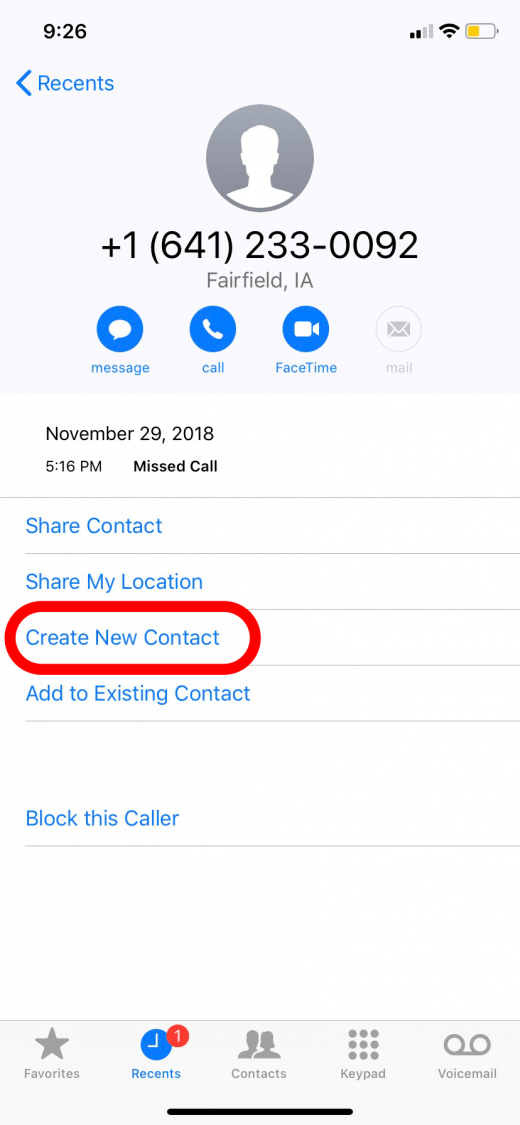
Select Create New Contact.


The phone number is already filled in, so just add the person's name.


Adding Additional Contact Details


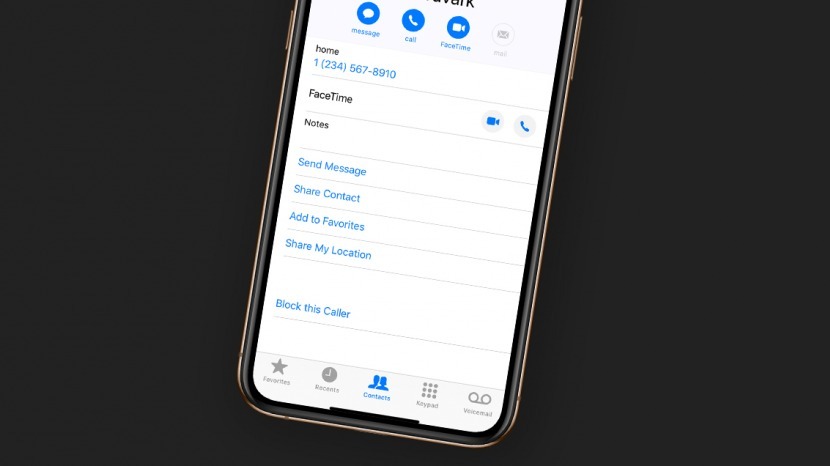
When you tap on the phone label, it opens a menu so you can label the phone number as home, work, and others. You can add multiple numbers for the same contact using these labels. Then, if you ask Siri to call or text this person, you can easily specify which number to call by saying something like, "Hey Siri, call Person A at home."


Scroll further down the intial Contact page, and you'll see you can add emails, addresses, and more. Fill these in and designate what type of information it is so you can use Siri commands like "Hey Siri, give me directions to Bill's house." Or, "Hey Siri, email Bill at work."


Siri will use the address you've designated as "home" or the email you've designated as "work" in Bill's contact info. You don't have to take the extra step, but then Siri will not always understand these commands.


Once you've entered all the contact information, tap Done to save.


Now you know how to add and fill contacts for the Contacts App!
Master your iPhone in one minute a day:

Sign up to iPhone Life's Tip of the Day Newsletter and we'll send you a tip each day to save time and get the most out of your iPhone or iPad.

Also Read:Is Chromium a Virus? The Difference between Chromium and Chrome


Also Read:What Is Service Host SuperFetch | Fix 100% Disk Usage in Windows 10
Also Read:3 Ways to Use WhatsApp without a Phone Number or SIM in 2019
Also Read:5 Best Free MP3 Tag Editors for You to Download on Windows 10/8/7 2019
Also Read:How to Convert SWF to MP4 on Mac or Windows

Also Read:7 Best iOS Apps to Download Free Music on iPhone/iPad in 2019
Also Read:How to Make Funny Memes on iPhone & Best Meme Maker Apps in 2019Also Read:How to Permanently Disable Wsappx to Fix 100% Disk Usage in Windows 10

Thursday, 7 March 2019

How to Fix iPhone Typing by Itself


It is needless to mention that iPhone are highly sophisticated devices with plethora of features. Despite the smooth performance, iPhone users occasionally experience some potential errors.

In fact, some of these errors are quite simple but they can be exceptionally annoying.

What if your iPhone doing things on its own? For instance, what if your iPhone typing by itself?

Do you know what it is and how to fix it? Well, this article will answer this question.

Sponsor ads:
Gihosoft iPhone Data Recovery Free
Free iPhone Data Recovery Software for Windows/Mac
Recover up to 12+ types of files, including contacts, SMS, photos, WhatsApp, Viber, notes, etc.
Restore lost data from iOS devices directly or from iTunes and iCloud backup
Recover iPhone data lost due to iOS upgrade/jailbreak, accidental deletion, device lost or broken
Support all the latest iPhone, iPad and iPod Touch
Both Free and Pro version.
If you lost data after you updated to a new iPhone, you can always use Gihosoft iPhone Data Recovery to get the data back from the old iPhone or backup.You may also like: iphonerecovery.com
If you use android phones, please choose Gihosoft Android Data Recovery.
With Gihosoft Android Data Recovery, no longer afraid of data loss!
Gihosoft RePicvid Free Photo Recovery Software provides a free photo recovery software for windows to help users recover the deleted or lost photo for free.
Jihosoft Android Data Recovery: the best Android Data Recovery software for Windows and Mac to recover deleted contacts, messages, photos, videos, WhatsApp and etc from Android devices.Tips:How to transfer messages from iPhone to iPhone


Part 1: 3 Tips before Fixing iPhone Typing by Itself


Part 2: Top 5 Ways on How to Fix iPhone Typing by Itself
Part 1: 3 Tips before Fixing iPhone Typing by Itself

Obviously, “iPhone typing buy itself” issue can be fixed. But before we do that, there are three tips to consider.
Tip 1. Clean the Device Screen

To clean the device’s screen, you shouldn’t use any of the cleaning solvents. Instead, use a little amount of water with a microfiber cloth and wipe the screen. Make sure you use gentle strokes.
Tip 2. Restart Your Device

Restarting your device can fix variety of minor issues including “iPhone doing things on its own”. Let’s see how to restart the iPhone.


For iPhone X and later

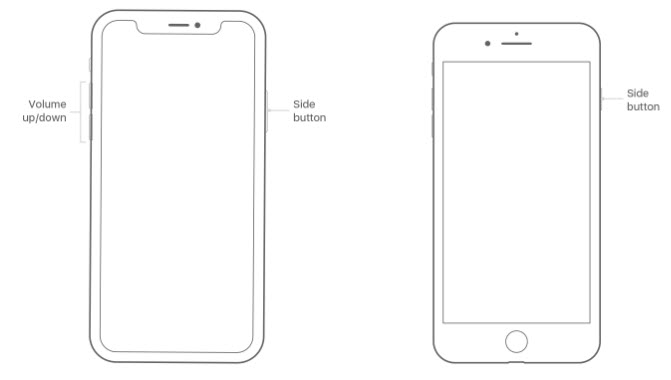
Step 1: Press the side button, any of the volume buttons and hold them to see the slider.

Step 2: Drag the slider so you can turn it off.

Step 3: Once the device is turned off, switch it on by pressing the side button again.

For iPhone 8 and older versions

Step 1: Press the top/side button and hold it to see the slider.

Step 2: Drag the slider so you can turn it off.

Step 3: Once it is turned off, press the Top/Side button to see the Apple logo.
Tip 3. Back up Your Device in Advance

Creating a backup of your device is very important before you proceed to an advance fix. Otherwise, you might encounter with a data loss. You can use either iCloud or iTunes to do this.

Use iCloud

Step 1: Connect the device to a solid Wi-Fi network connection.

Step 2: Tap on the Settings and then go to iCloud.

Step 3: Select “Backup” and turn on the option “iCloud Backup”.

Step 4: Tap on the option “Backup Now”.


Use iTunes

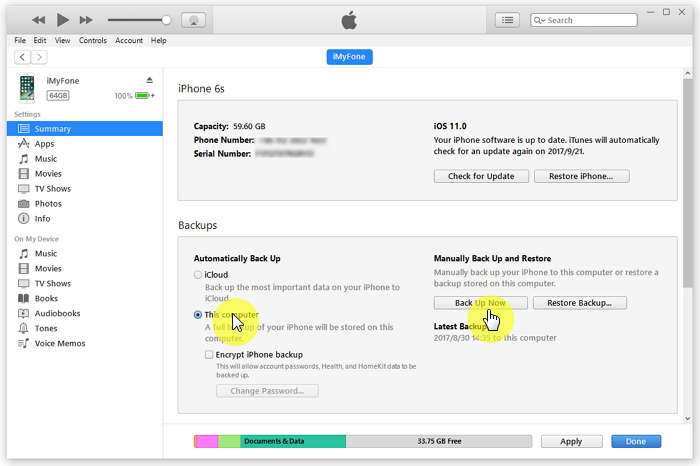
Step 1: Launch iTunes on your computer.

Step 2: Connect the iOS device to the same computer.

Step 3: Click on File and then select Devices.

Step 4: Go to Backup or Back Up Now.


Part 2: Top 5 Ways on How to Fix iPhone Typing by Itself

Also Read:10 Best Free 3D & HD Live Wallpaper Apps for Android in 2019
Also Read:Gihosoft TubeGet User Guide
Also Read:8 Best Battery Saver Apps for Android with Super Long Standby Guarantee
Also Read:15 Best Game Console Emulators for Mac OS
Also Read:iPhone Screen Recorder: How to Record Your iPhone or iPad ScreenNow, lets take a look at the most effective ways to fix this issue.
Way 1: Update Your Device

The first way to fix iPhone screen doing things on its own error is to update the device.

Step 1: Make sure that your device is fully charged and connected to Wi-Fi.

Step 2: Go to Settings and select General.

Step 3: Go to Software Update and tap on the option labelled Download and Install.

Step 4: Then, tap Install to get the device updated now.

Step 5: Provide the password when prompted.


Way 2: Fix iPhone Typing by Itself without Data Loss
Also Read:7 Best VPN Apps for iPhone & iPad to Keep You Safe
Also Read:How to Fix iPhone Volume Low in the Music App


Also Read:9 Best Karaoke Apps for iPhone and iPad – Enjoy Singing in 2019

How to Get rid of Box on iPhone Screen


Option 1: Use Your Fingers


The most basic way to fix this issue is by using your fingers.

In fact, in this case, you should use three fingers on the iPhone screen to disable this feature. All you have to do is to perform a 3-finger double tap on the screen. This action will disable the zoom feature.
Option 2: Via Settings


If you cannot figure out the previous method, you can try disabling this zoom feature through Settings on your iPhone. Let’s see how to do it.

Go to Settings -> Select General -> Go to Accessibility -> Turn off Zoom.


Option 3: Zoom out


The amount of zoom can be changed so it becomes a convenience instead of a burden. To do this, you should follow the steps below.

Step 1: Tap on the small box that is on the magnifying glass line.

Step 2: Then choose “Zoom Out”.


Option 4: Via iTunes


If that is not the solution for your situation, you should try to do it through iTunes. Listed below are the steps you should follow in order to rectify this issue using iTunes settings.

Step 1: First of all, connect your iOS device (iPad, iPhone or iPad touch) to the computer.

Step 2: Launch iTunes in the same computer Select your device when it appears in iTunes.

Step 3: Go to device summery page and select “Configure Accessibility” feature.

Step 4: To turn off the Zoom feature, you should go to Accessibility.

Step 5: Then, select the option “Neither” and click on “OK”.


Option 5: Turn off Automatic Text Magnification


If you are still struggling to resolve the issue, you should try this method.

Open Settings app -> Go to General -> Select Accessibility -> Select the option “Larger Text” -> Toggle the switch next to “Larger Accessibility Sizes” to turn it off.


Also Read:jihosoft Free iPhone Data Recovery

Sponsor ads:

Gihosoft Free iPhone Data Recovery:https://www.gihosoft.com/iphone-data-recovery-free.html

Gihosoft iPhone Data Recovery Free

Free iPhone Data Recovery Software for Windows/Mac

Recover up to 12+ types of files, including contacts, SMS, photos, WhatsApp, Viber, notes, etc.

Restore lost data from iOS devices directly or from iTunes and iCloud backup

Recover iPhone data lost due to iOS upgrade/jailbreak, accidental deletion, device lost or broken

Support all the latest iPhone, iPad and iPod Touch

Both Free and Pro version.

If you lost data after you updated to a new iPhone, you can always use Gihosoft iPhone Data Recovery to get the data back from the old iPhone or backup.You may also like: iphonerecovery.com

If you use android phones, please choose Gihosoft Android Data Recovery.

With Gihosoft Android Data Recovery, no longer afraid of data loss!

Must read:Youtube video downloader for pc

Gihosoft RePicvid Free Photo Recovery Software provides a free photo recovery software for windows to help users recover the deleted or lost photo for free.

Jihosoft Android Data Recovery: the best Android Data Recovery software for Windows and Mac to recover deleted contacts, messages, photos, videos, WhatsApp and etc from Android devices.Tips:How to transfer messages from iPhone to iPhone

iCloud Login Password Recovery Solutions that Truly Work


Is it Possible for iCloud Login Password Recovery?

Yes, it’s possible to do iCloud login password recovery even when you chose two-factor authentication or two-step verification options for recovering password while creating the iCloud account.

However, the two-factor authentication and two-step verification requirements must be met before you can recover your iCloud login password.
How to Perform iCloud Login Password Recovery

If you’re having issues login into iCloud.com with your Apple ID password, you can any of the following methods to reset your password and regain your account again. However, the method you choose should be the same as the one you chose while creating the iCloud account.
#1. Reset Your Password Using Email, Password or Security Question

iCloud login password recovery can be done via email, password or security while creating the account, follow the steps below:

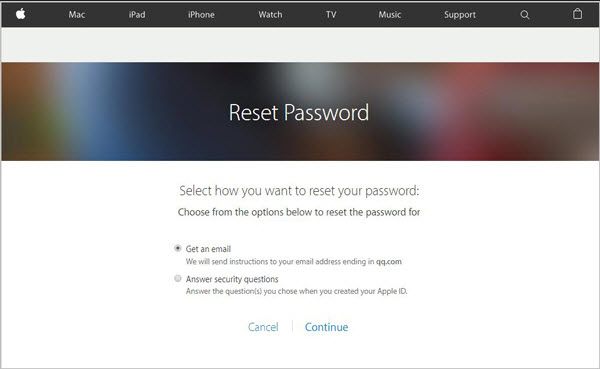
Step 1. Go to Apple ID account page, and then click “Forgot Apple ID or Password”.

Step 2. Enter your iCloud account ID, and select the options “Reset Password > Continue”.

Step 3. Choose a way to reset your password:


If you chose “Answer Security Questions”, then provide the answers and proceed to the next step.


If you chose “Get Email”, then proceed to your primary rescue email address, and follow up from there with the email sent to you to recover your password.


Step 4. Create a new password and confirm the password.
#2. Reset Your Password Using Two-Factor Authentication

If you chose to do iCloud login password recovery via two-factor authentication while creating the account, follow the steps below:

Step 1. Go to your Device’s Settings app.

Step 2. Click on “Your Name > Password & Security > Change Password”.


Step 3. Follow the onscreen steps to recover your password.
#3. Reset Your Password Using Two-Step Verification

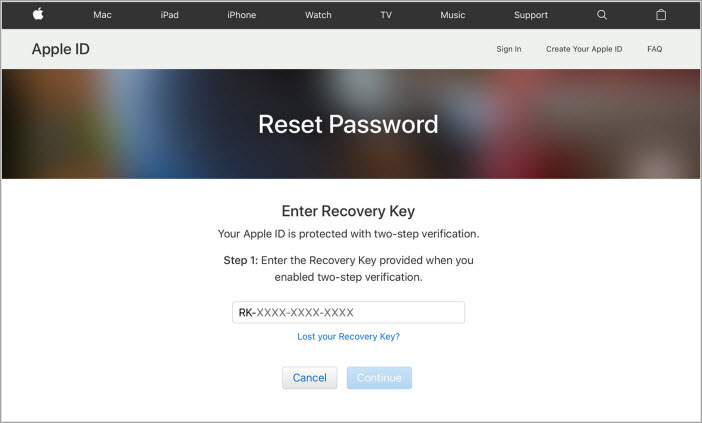
If you chose to recover your iCloud login password via two-step verification while creating the account, follow the steps below:

Step 1. From Apple ID account page, click “Forgot Apple ID or Password”.

Step 2. Enter your Apple ID and select “Reset Password > Continue”.

Step 3. Input the recovery key for two-step verification which is provided when you enabled the function.


Step 4. Choose a device which you can receive a verification code.

Step 5. Enter the verification code, then you can create the new password.

Step 6. Tap “Reset Password” to complete the process.

Also Read:jihosoft Free iPhone Data Recovery

Sponsor ads:

Gihosoft Free iPhone Data Recovery:https://www.gihosoft.com/iphone-data-recovery-free.html

Gihosoft iPhone Data Recovery Free

Free iPhone Data Recovery Software for Windows/Mac

Recover up to 12+ types of files, including contacts, SMS, photos, WhatsApp, Viber, notes, etc.

Restore lost data from iOS devices directly or from iTunes and iCloud backup

Recover iPhone data lost due to iOS upgrade/jailbreak, accidental deletion, device lost or broken

Support all the latest iPhone, iPad and iPod Touch

Both Free and Pro version.

If you lost data after you updated to a new iPhone, you can always use Gihosoft iPhone Data Recovery to get the data back from the old iPhone or backup.You may also like: iphonerecovery.com

If you use android phones, please choose Gihosoft Android Data Recovery.

With Gihosoft Android Data Recovery, no longer afraid of data loss!

Must read:Youtube video downloader for pc

Gihosoft RePicvid Free Photo Recovery Software provides a free photo recovery software for windows to help users recover the deleted or lost photo for free.


Jihosoft Android Data Recovery: the best Android Data Recovery software for Windows and Mac to recover deleted contacts, messages, photos, videos, WhatsApp and etc from Android devices.Tips:How to transfer messages from iPhone to iPhone

iOS 13: All The New Features in Safari on iPhone

Safari update in iPadOS 13 is turning the iPad into a real computer . And most of those improvements make their way to the iPhone as well. ...